
Migrating from legacy devices
This guide moves a charger running older EVSE firmware onto the current MissingBolt firmware and app. Three stages: update the firmware over the air, find the device in the app, then claim ownership.
Your charger keeps its Wi-Fi settings through the update and stays on your network the whole time.
IMPORTANT: Reach out first to flag the EVSE for upgrade
1. Update the firmware (OTA)#
Open the charger’s local web page in a browser — its IP on your network. On the EVSE tab, find System → Version. When a newer build is available, a NEW UPDATE! button appears next to the current version. Tap it to start the over-the-air update.
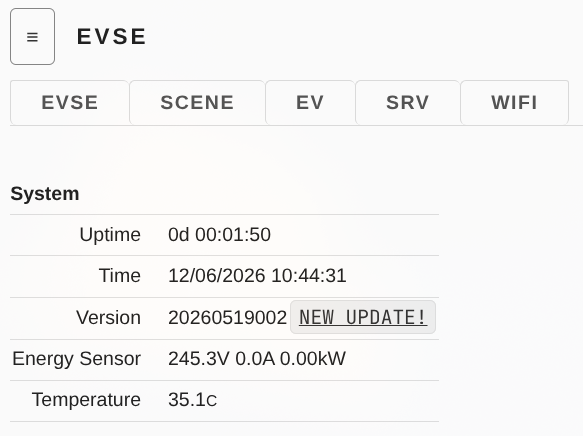
The charger downloads the new firmware and reboots. The process takes about 2 minutes to complete and come back online — it rejoins the same Wi-Fi automatically.
Don’t cut power during the update.
Keep the EVSE page open, if update is successful, the new web page will open on the same IP address.
Issues?
Open you mobile’s WiFi settings and check which new networks are available:
APREVSE-xx: The device is ready to be provisioned / claimed, go to the next step
APR-RECOV-xx: The device failed to connect to local wifi network or to finish the transition process. Connect to this network, opena a browser and navigate to http://192.168.4.1
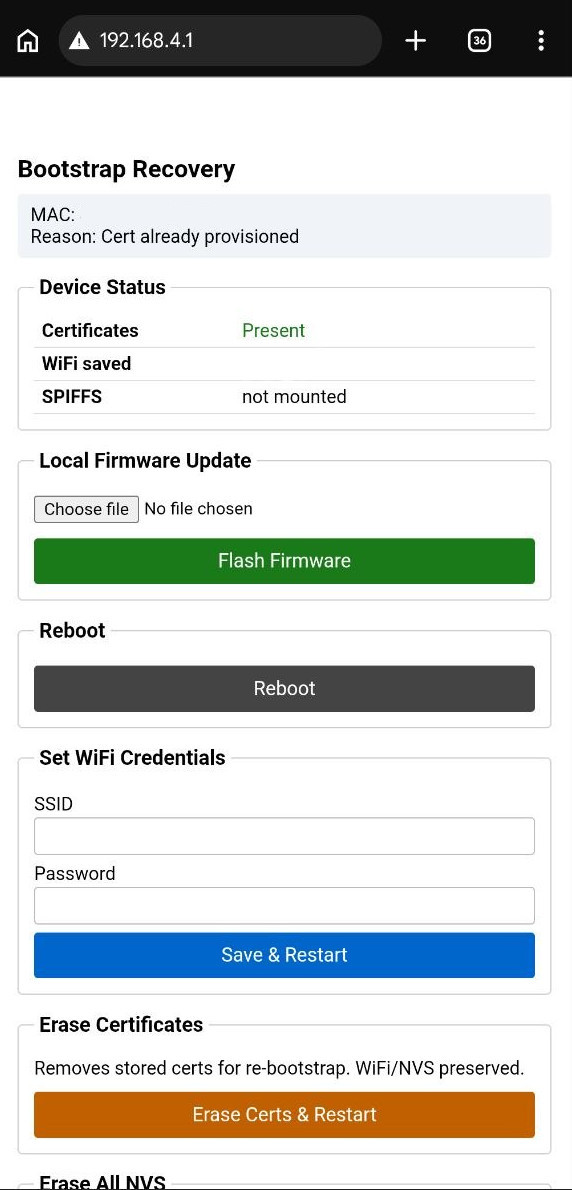
- Add local wifi setting and try again
- Check again which wifi networks appear
2. Onboard device#
Choose detailed steps for your device:
Android
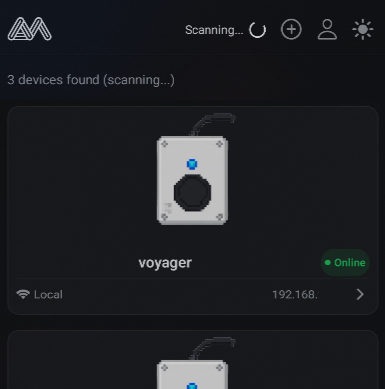
Open the MissingBolt app. With nothing claimed yet, you’ll see No Devices Found. Tap Scan Devices to search your local network.
The updated charger appears as Online on your local network, with its IP address.
Open Account (the profile icon). Under Claim Local Device, tap Scan Network. The unclaimed charger appears — tap Claim.
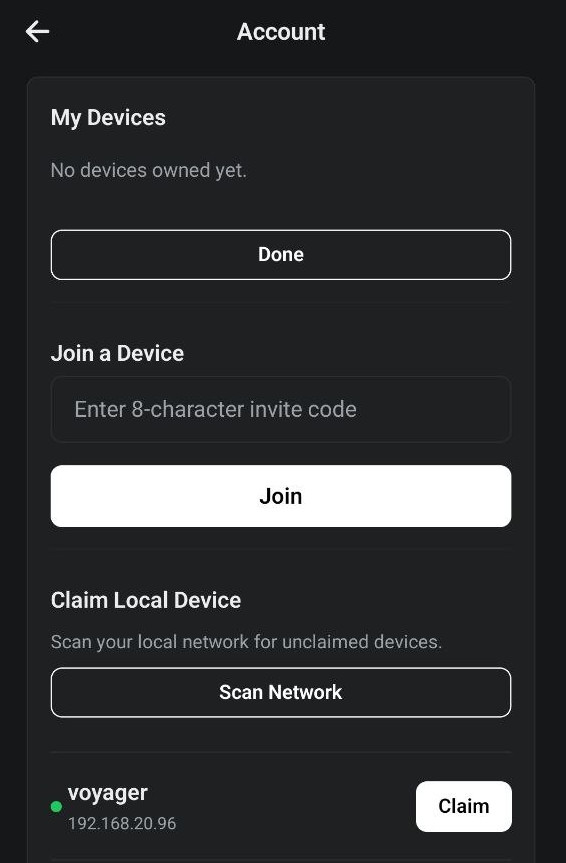
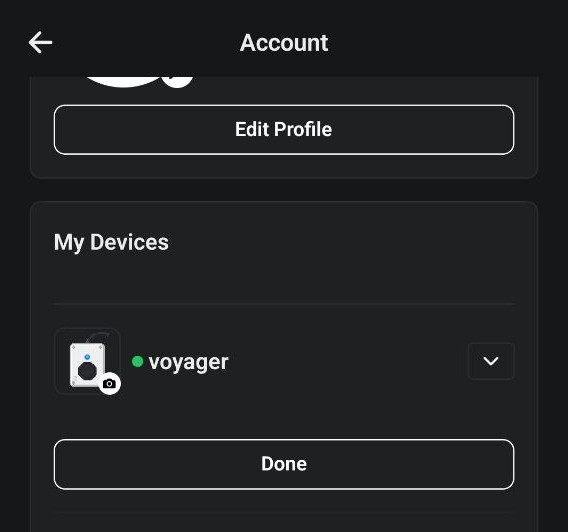
Once claimed, the charger moves to My Devices and is tied to your account. You can now control it remotely and set a photo.
iOS
Switch to the web page of the EVSE as shown at the end of step 1, navigate to WiFi section, and locate the QR code and the COPY ID button.
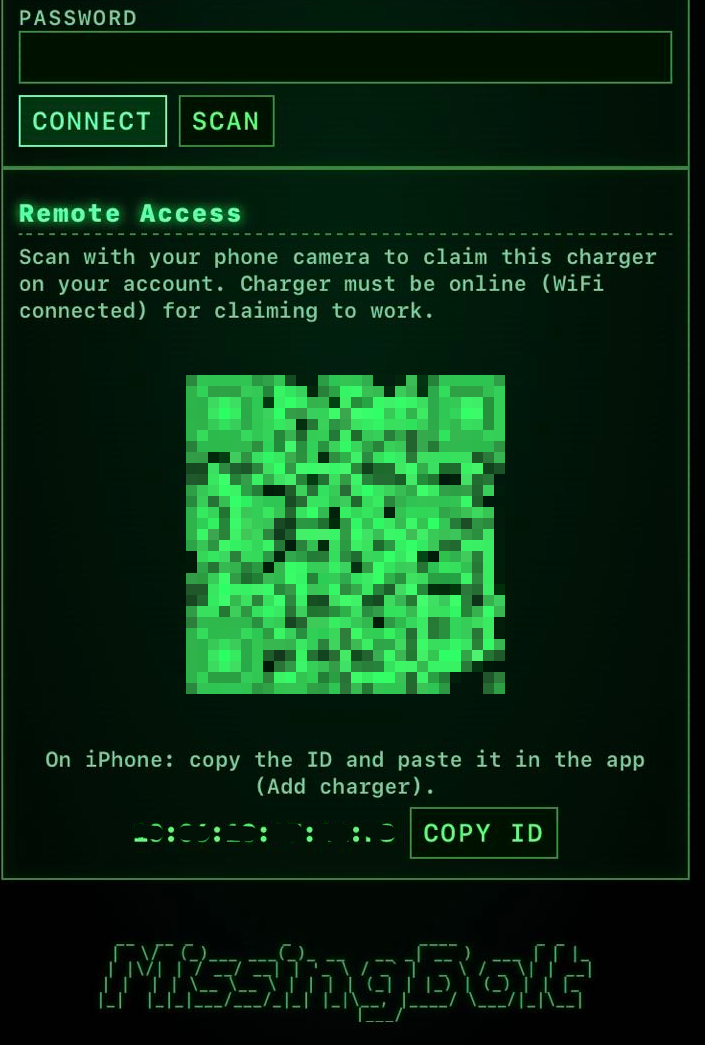
If you’re on the smartphone:
- tap
COPY ID - switch to the Web APP
- paste in Profile -> Edit Devices -> Add Charger -> Paste
If you’re on a PC/laptop:
- Open the mobile Web APP, Profile -> Edit Devices -> Add Charger -> Scan QR code
- Point the phone to the QR code shown on the PC.
Go back, the device should now appear. Click it to control the chargin unit!