
Device setup & Wi-Fi
First-time setup of a Missing Bolt charger from the mobile app. Takes about 5 minutes. The charger must already be installed and powered on — see the Quick start guide first.
Before you start
-
The charger is powered and its status ring is on.
-
You know your home Wi-Fi name and password (2.4 GHz network).
-
For Android devices: get the Telegram app and/or the Android app.
-
For Apple devices: get the Telegram app
A note for iOS users: Apple requires iOS developers to own recent Apple hardware, a mobile phone and a yearly subscription fee to have the privilege of developing apps for their customers. For Missing Bolt this means that, although the iOS version of the app is ready to ship, it is not yet economically sustainable. Telegram fits the bill for now, as it enables the web version of the Missing Bolt app to become available on all platforms, with the benefit of handling authentication automatically — open the Telegram mini-app and you’re in.
The web version of the app lacks local protocol discovery, which means that device reachability always resolves through the cloud and the provisioning process doesn’t apply. For local access, you need to access the charging device directly through your local browser. Click here for instructions
First sign-in
Cloud features and device ownership need an account. Sign in is passwordless:
- For Telegram users only, open the bot: http://t.me/mbevse_bot/app
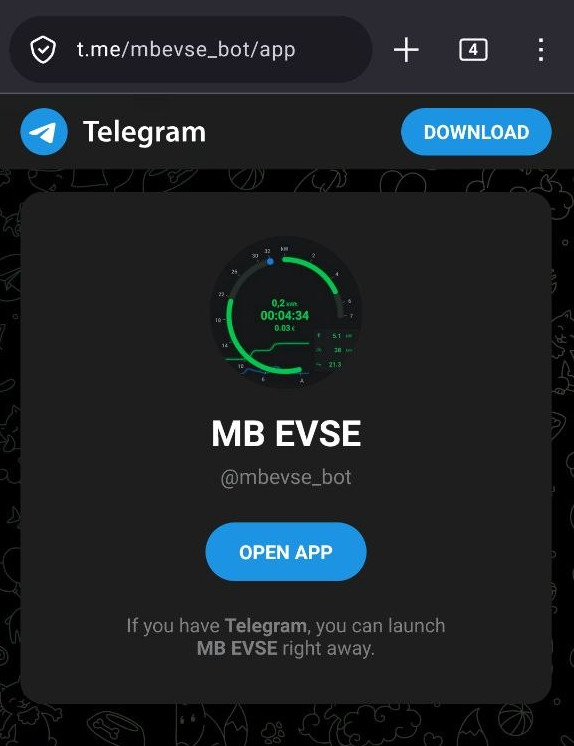
Open the app and you will be automatically authenticated.
An email is not needed for Telegram-only use, but is recommended for future planned features like periodic reports, etc.
Click the top profile button -> Edit Profile
set a Name : Save
set an email : Enter the 6-digit code from your inbox, tap Verify.
- For app users:
Enter your email, tap Send Code.
Enter the 6-digit code from your inbox, tap Verify.
You can control local charger and do the whole provision process on your local network without signing in. You’ll need an account later to control it remotely and to claim ownership.
Add the device
From the device list, tap Add New Device. The wizard has six steps.
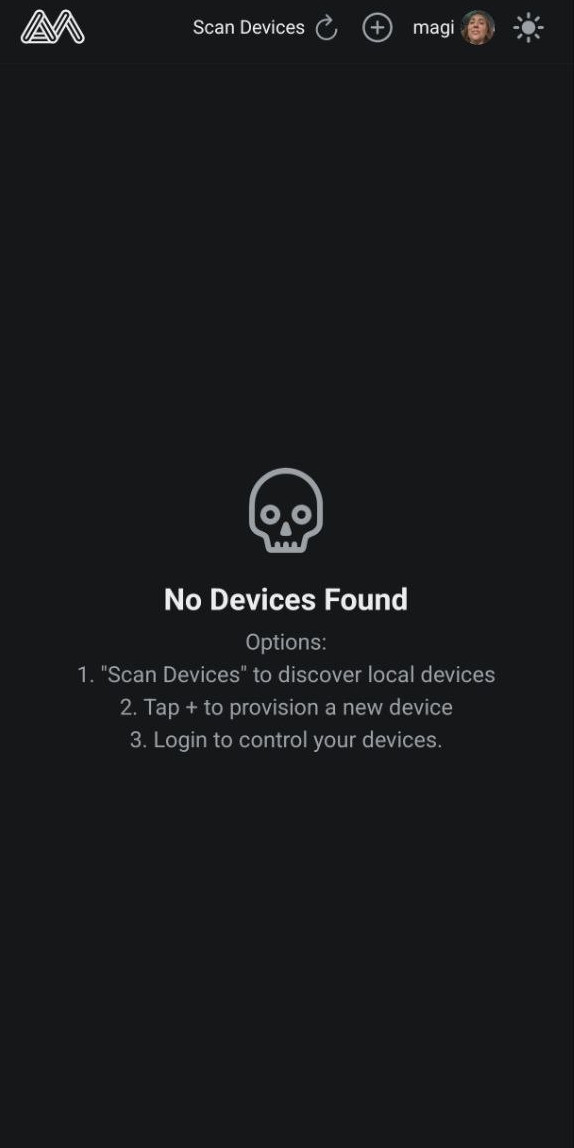
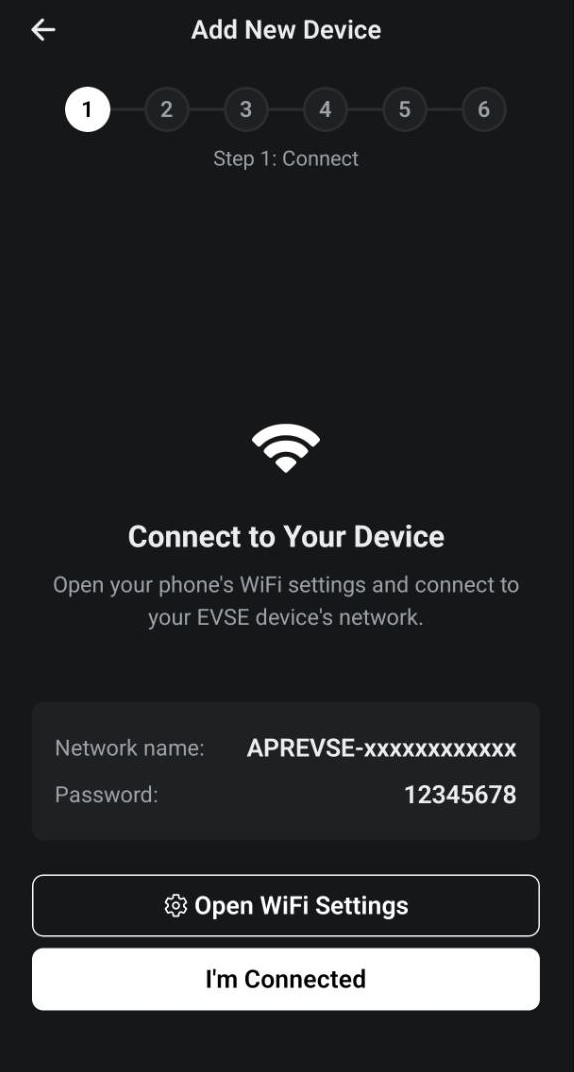
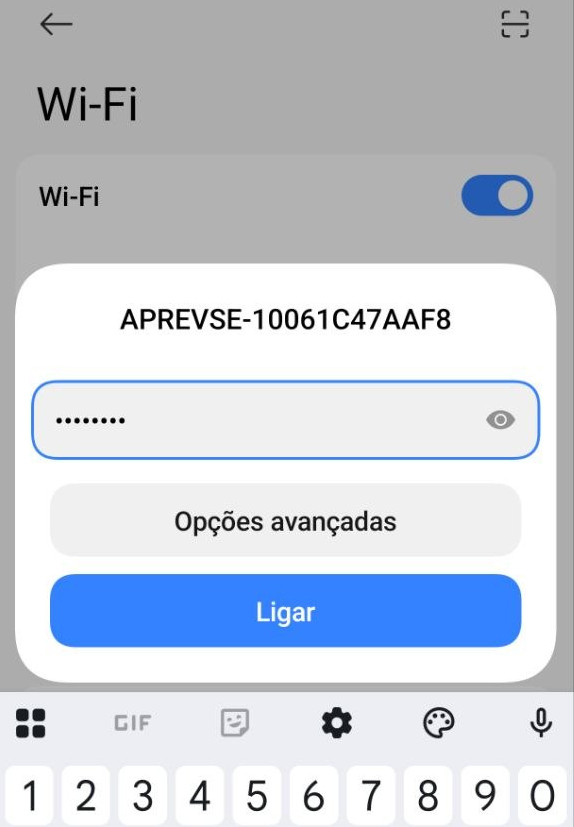
1 · Connect — Open your phone’s Wi-Fi settings and join the charger’s own network:
| Network | APREVSE-xxXXxxXXxxXX |
| Password | 12345678 |
If your phone warns the network has no internet, choose to stay connected. Return to the app and tap I’m Connected.
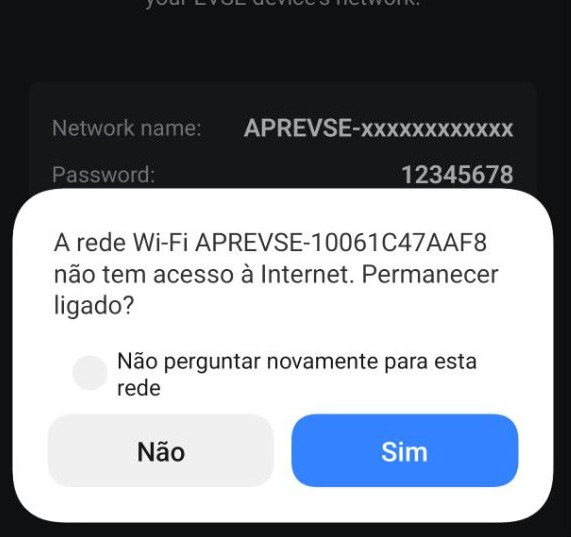
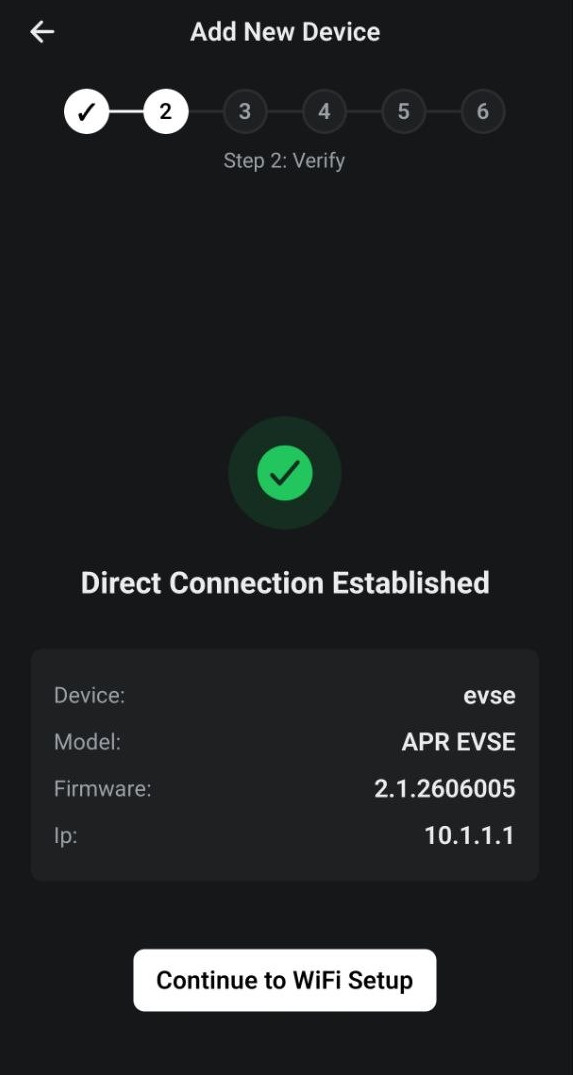
2 · Verify — The app confirms a direct connection and shows the device
model, firmware, and its setup address (10.1.1.1). Tap Continue to Wi-Fi
Setup.
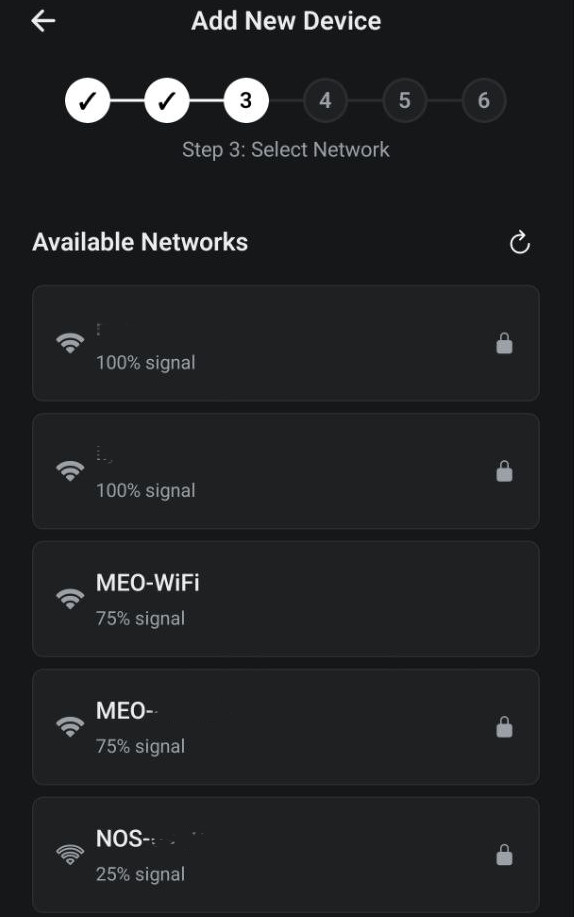
3 · Select network — The charger scans for nearby Wi-Fi. Pick your home network, or enter the name manually if it’s hidden. Tap Continue.
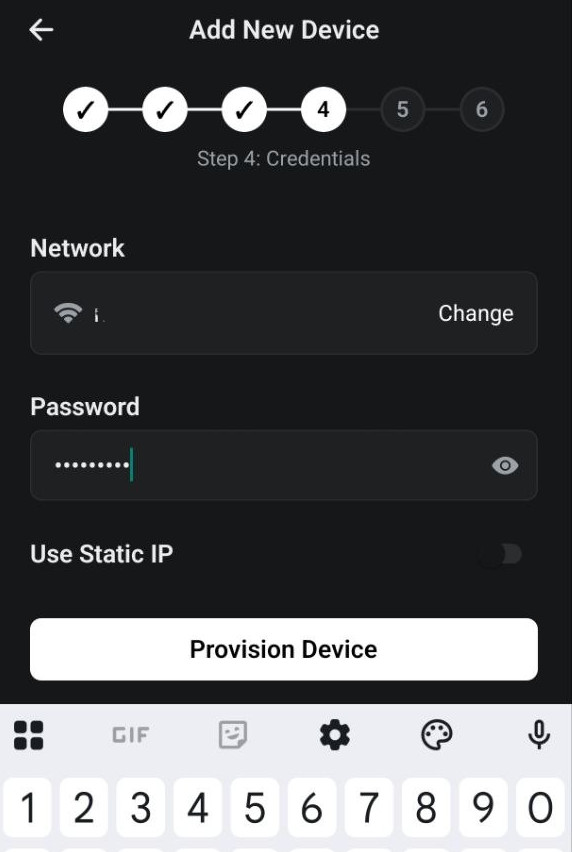
4 · Credentials — Enter your Wi-Fi password and tap to provision. To assign a fixed address now, set a static IP (optional — you can also do it in step 6).
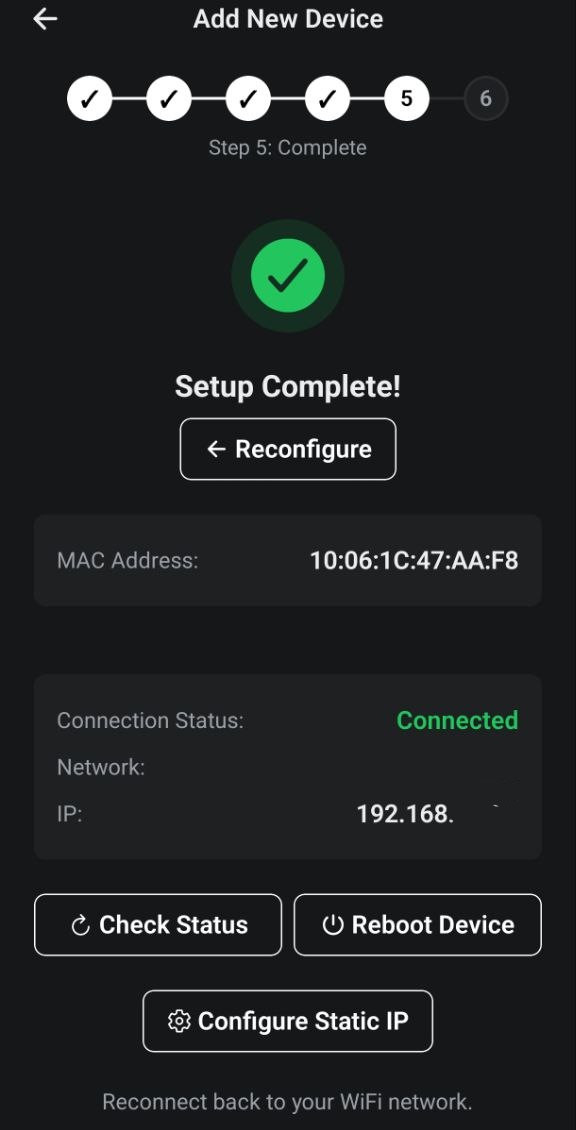
5 · Complete — The charger reboots and joins your Wi-Fi. The screen shows its MAC address and a live connection status:
- Connected — success; the network name and IP are shown.
- Not connected yet — wait a few seconds and tap Check Status, or Reboot Device and retry. Double-check the Wi-Fi password (step 4 → Reconfigure).
Now reconnect your phone back to your home Wi-Fi.
6 · Static IP (optional) — Set a fixed IP, subnet mask, gateway, and DNS. Leave DNS empty to use the gateway. Recommended if you want a stable local address.
Claim ownership
To control the charger remotely and manage who has access, claim it:
- Make sure your phone is back on your home Wi-Fi.
- Tap Claim Ownership (or open the device and claim it later).
Outcomes: You are now the owner (success), or Device already has an owner — ask the current owner to share access.
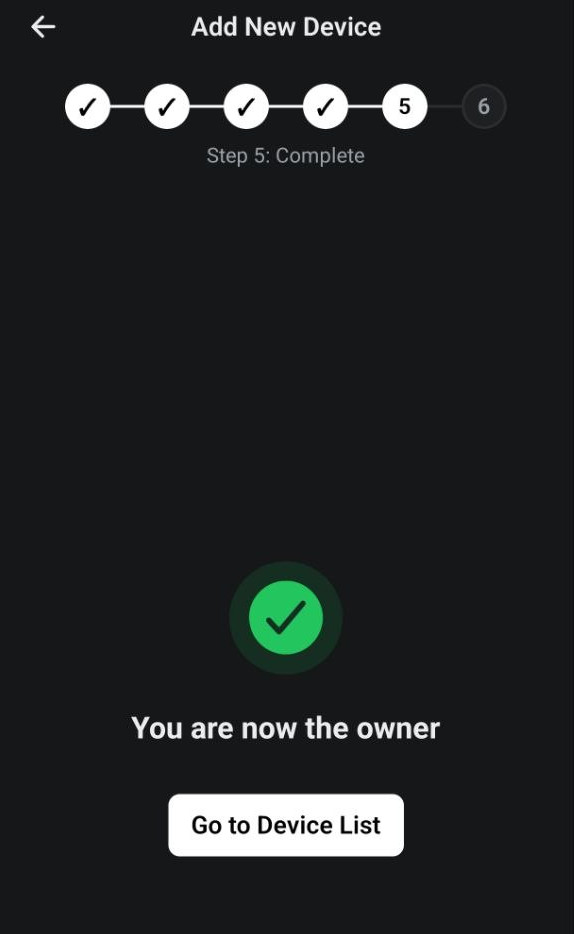
Claiming needs the charger to have reached the cloud. If claim fails, confirm the charger shows Connected on your home network and try again.
Personalize your charger
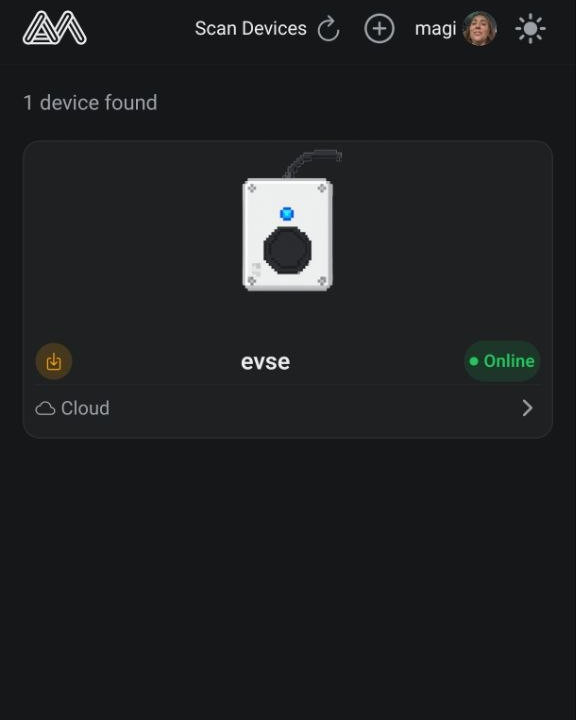
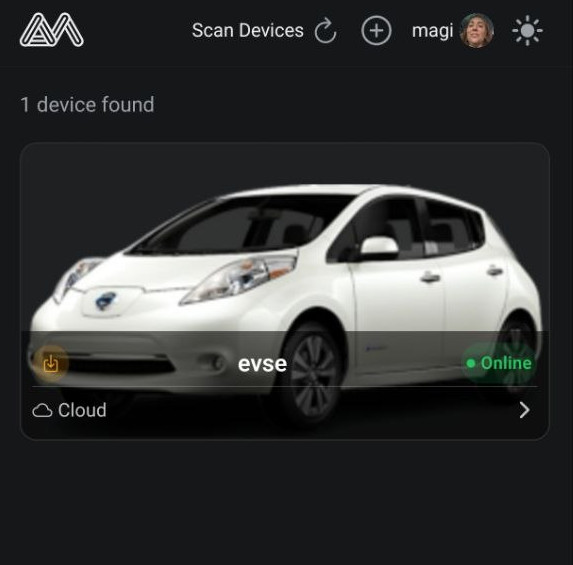
Back on the device list, your charger appears as Online. Give it a photo so it’s easy to recognise:
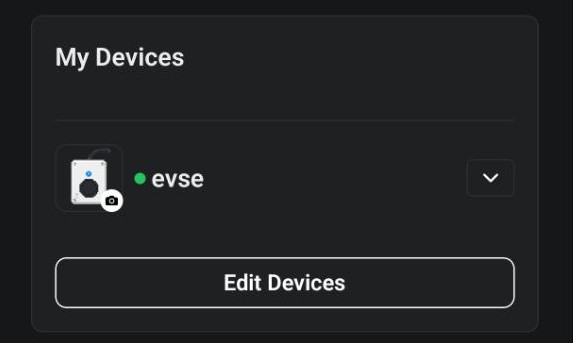
- Open the User Profile, tap your device under My Devices, then the camera icon.
- Take Photo, Choose Photo, or pick a model from the Gallery, then tap Save.
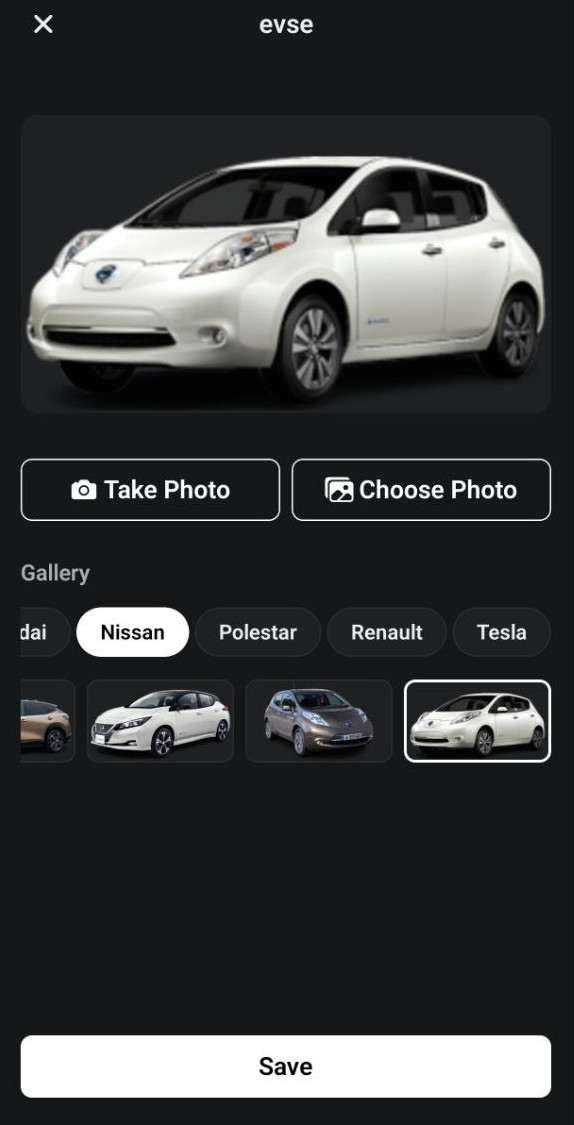
The photo now shows on the device card.
Not all photos integrate well with the control panel, the best candidates have 16:9 format and no background
Troubleshooting
| Problem | Fix |
|---|---|
| ”Device unreachable” in step 1 | Your phone isn’t on the APREVSE-… network. Rejoin it (password 12345678). |
| Stuck on “Not connected yet” | Wrong Wi-Fi password, or 5 GHz-only network. Reconfigure with the 2.4 GHz SSID. |
| Charger not in device list | Reconnect your phone to home Wi-Fi, pull to refresh, and rescan. |
| Claim failed | Charger hasn’t reached the cloud yet. Wait, confirm it’s online, retry. |